
Backup for
Office 365

Back up your Microsoft 365 data. Restore what matters, when you need it.

CodeTwo Backup for Office 365

Your data. A recoverable copy.

CodeTwo Backup for Office 365 is a Windows application for backing up Exchange Online, SharePoint Online and OneDrive for Business. It keeps copies in storage you control and lets administrators recover individual items or larger collections of data.

One console for backup and recovery.

Configure jobs, follow their progress and review notifications from a central dashboard. Select the resources that matter to your organisation, choose a storage location and decide when backups should run.

The first cycle copies the selected data. Later incremental cycles capture new and changed items. When something goes missing, browse the stored versions and choose what to restore.
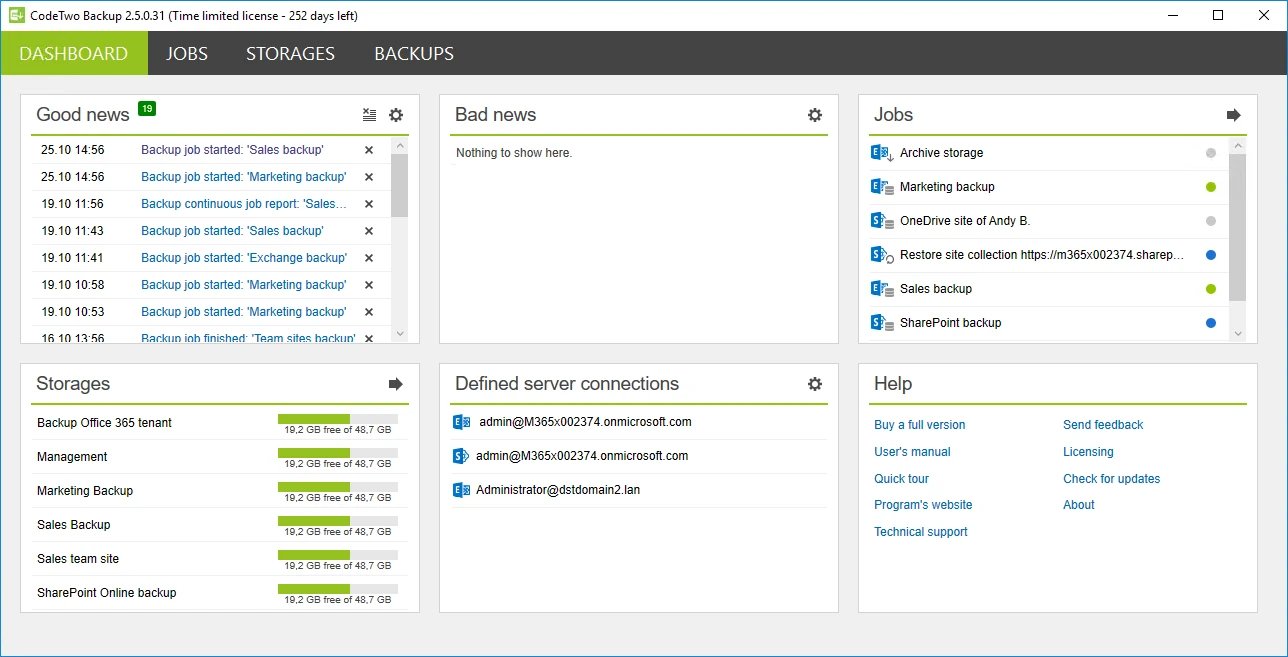
CodeTwo Backup dashboard with job activity and storage statistics

Email and shared information

Protect user mailboxes and public folders, including messages, contacts and calendar information. Choose entire mailboxes or a more selective backup scope.

Files and collaboration

Include SharePoint sites and OneDrive data in your plan. Some Teams content is covered through these underlying services; this is not a complete backup of every Teams component.

Choose where your backups live.

Run the application on a supported physical or virtual Windows machine. Storage is supplied and managed by you; CodeTwo does not provide a hosted backup repository. A cloud-hosted Windows VM is also an option.

Connections use OAuth modern authentication. CodeTwo develops the product under its ISO/IEC 27001 and ISO/IEC 27018-certified information security management system. Access controls, capacity and protection of the backup environment remain part of your deployment plan.

Plan for recovery from the beginning.

Agree which resources need protection, how far back you need to recover and who will test restores. Nordma can help scope the environment and the implementation.

Discuss your backup requirements
Features

Protect broadly. Restore precisely.

Combine automatic backup jobs with control over scope, retention and recovery destinations.

Select the mailboxes you need.

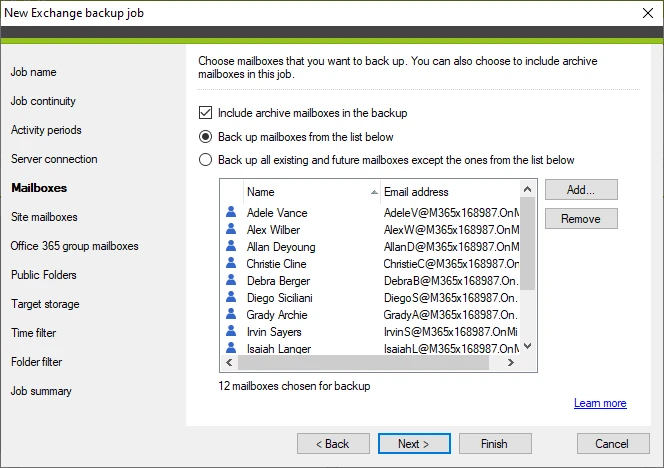
Include user, group, shared, resource and archive mailboxes in the backup scope. Jobs can cover all mailboxes or selected users, with continuous jobs able to include newly created mailboxes.

Filters let you exclude selected folder types or apply age criteria. This helps separate a broad recovery backup from a job designed for a particular set of historical records.

CodeTwo Exchange backup wizard selecting mailboxes

Run backups around your schedule.

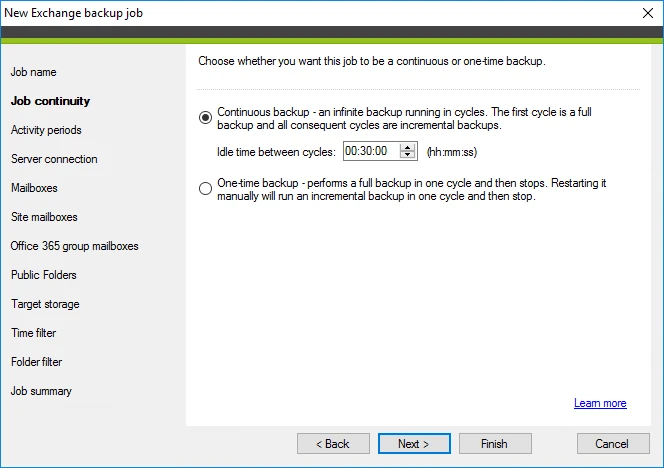
Choose a one-time job or recurring incremental cycles. Set activity periods for jobs that should run during particular hours, then monitor the results in the console.

Multiple tenants and storage repositories can be managed from one installation. Notifications help administrators identify events that need attention.

CodeTwo backup job wizard with continuous and one-time options

Find an item and its earlier versions.

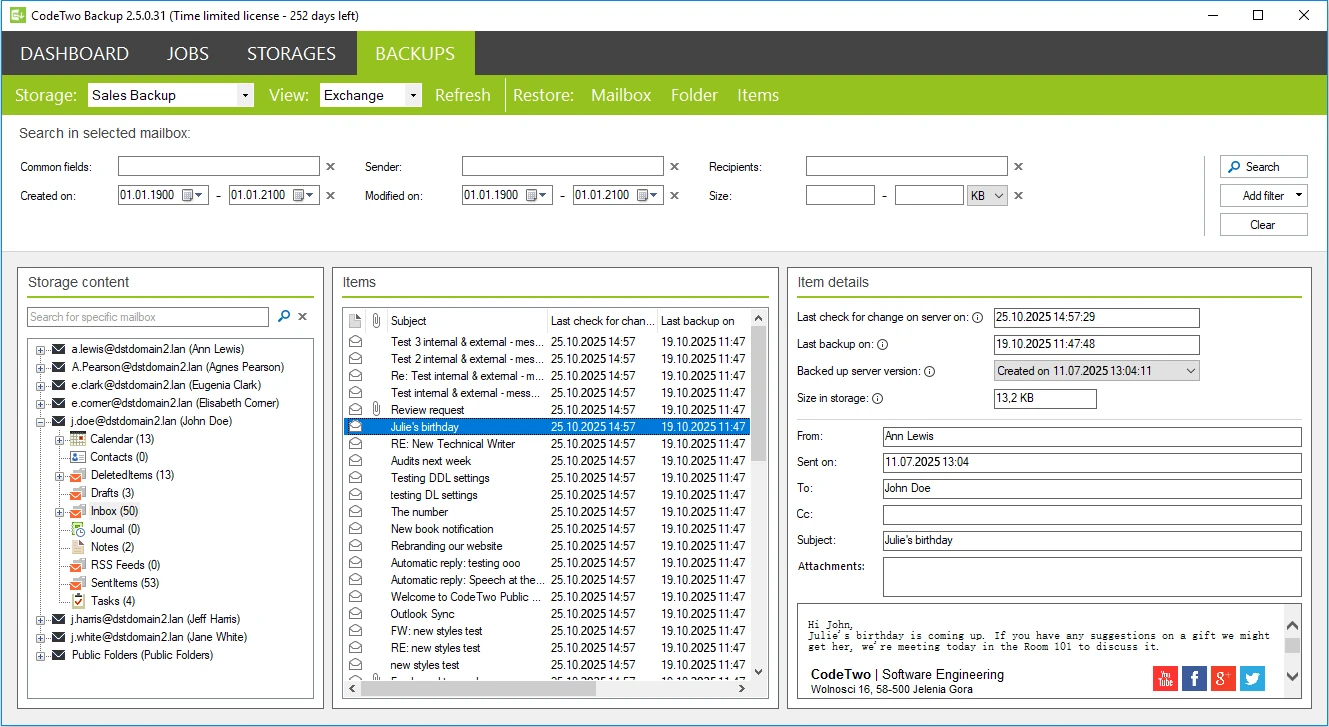
Browse stored folders and use search criteria to locate the information you need. Changed items are kept as separate backup versions, so you can select a captured point in time.

Restore a message, document, folder, list or library without recovering the whole mailbox or site. Larger recoveries are available when a wider collection has been affected.

CodeTwo backup browser showing stored mailbox items and versions

Choose the recovery destination.

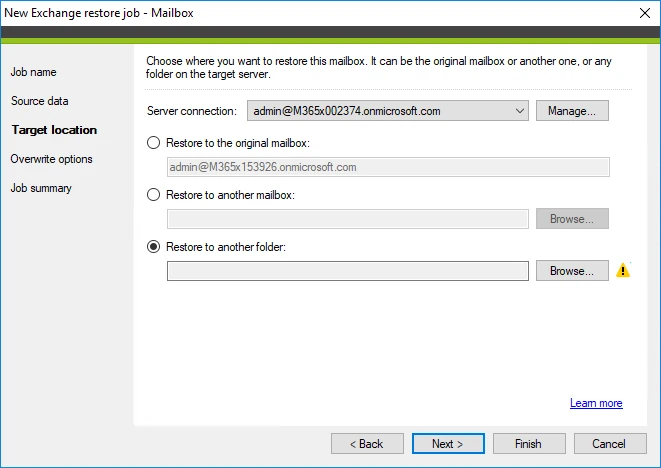
Restore to the original location or another supported mailbox or SharePoint destination, including a different Microsoft 365 tenant.

SharePoint recovery supports sites, libraries, lists, files and OneNote content. The application can create target site structures and map permissions between users and groups when restoring to another tenant.

CodeTwo restore wizard selecting the target mailbox

Manage retention and archive copies.

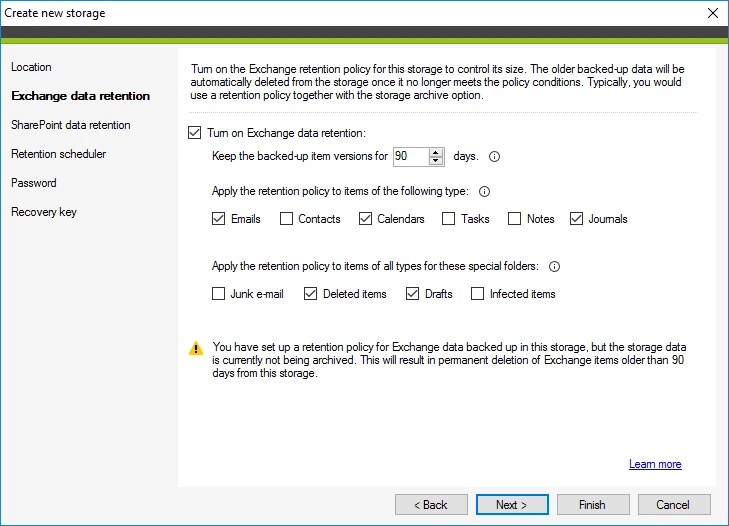
Define retention rules for backup storage and schedule their application. Automatic archive jobs can preserve older backup data; Exchange mailbox and public-folder content can also be exported to PST.

Match retention to your recovery needs and available capacity. Archive copies deserve their own protection and restore checks, particularly before older data is removed from working storage.

CodeTwo storage configuration showing retention settings

SharePoint and OneDrive protection

Back up classic and modern SharePoint sites, including team and communication sites, alongside users’ OneDrive sites. Recover selected document versions or deleted files from existing backups. For Teams files, include the SharePoint or OneDrive locations where those files actually reside.

Examples of use

A backup becomes valuable when you need it.

These scenarios show where backup and recovery can support everyday operations. Start by confirming that the relevant data is included in a successful backup job.

Recover an accidentally deleted item

Find the missing email or document in the backup, select the required version and restore it. A targeted recovery avoids replacing an entire mailbox or site.

Return to an earlier version

When a file is overwritten or damaged, recover a version captured before the change. Available recovery points depend on completed backup cycles and retention settings.

Keep former employees’ information accessible

Archive a departing user’s mailbox and retain a searchable copy. Confirm the backup and recovery requirements before removing accounts or changing Microsoft 365 licensing.

Support records retrieval

Keep selected records for an agreed retention period and retrieve relevant items when needed. Define the retention policy and access responsibilities with the people who own those records.

Make room in busy mailboxes

Back up older items before a planned mailbox clean-up. Validate the copy first; deleting source data is a separate administrative decision, not an automatic consequence of backing it up.

Use an Azure-hosted backup machine

Run the application on a Windows VM with suitable attached storage when a local server is not the preferred option. Plan VM operation, disk capacity, access and ongoing costs.

Recover files used in Teams

Protect the underlying SharePoint and OneDrive locations. Restored content may need to be reattached to Teams channels or tabs; this does not recreate every aspect of a team.

Prepare for a wider recovery

Document a recovery order for mailboxes and sites, then test it with representative data. Nordma recommends checking permissions and restored content as well as whether a restore job completed.

Which recovery matters most to your business?

Start with a realistic scenario and use it to define the backup scope, retention and restore test.

Plan your backup
FAQ

Questions before you start.

Practical answers about installation, storage and recovery.

Is this a hosted backup service?

No. You install the Windows application and provide its storage. You can also run it on a cloud-hosted Windows virtual machine.

Can it back up directly to cloud object storage?

The application creates local storage repositories. For a cloud deployment, run it on a cloud-hosted VM with suitable storage rather than treating it as a direct connector to an arbitrary cloud storage service.

Can I restore just one message or file?

Yes. Granular recovery lets you select individual items as well as larger folders, mailboxes or SharePoint collections. You can choose from the versions present in your backup.

Does it back up everything in Microsoft Teams?

No. It protects selected Teams-related information through Exchange Online, SharePoint and OneDrive backups. Check the required content and its storage location when defining your jobs.

How much storage will I need?

Capacity depends on the amount of protected data, changes over time, retained versions and archive copies. Include room for growth when sizing the repository.

Can I try it before purchasing?

A 30-day trial supports backup jobs, with restoration limited to five items per folder. Contact Nordma to plan an evaluation around representative data and recovery tasks.

What happens if I do not renew?

Backup jobs stop when the paid subscription expires. Previously stored data remains available for restoration.

Pricing

Licence the users. Plan the storage.

CodeTwo Backup for Office 365 uses a prepaid annual subscription. Nordma can prepare a quotation based on your users, shared resources and deployment requirements.

Annual user licensing

One licence covers a protected user across the applicable workloads. The published minimum is 10 licences. Software updates and technical support are included in the subscription.

Shared resources

For public folders and SharePoint resources, account for users who can access and modify the protected content. Microsoft 365 group mailbox licensing covers the group’s members.

Additional mailbox types

Archive, shared and resource mailboxes do not require separate licences when they have no assigned Exchange Online licence. Review your actual mailbox configuration when calculating quantities.

Infrastructure and implementation

Storage, a local server or cloud VM, and any Nordma implementation work should be scoped separately from the software subscription. Include capacity growth and recovery testing in the plan.

Evaluate with a 30-day trial.

Test backup jobs and a representative recovery before committing. The standard trial restores up to five items per folder.

Request a tailored quotation.

Tell us your user count, the resources you want to protect and your preferred hosting location. Include any shared sites, public folders and retention requirements.

Pricing enquiry